A user-agent string is one of the first pieces of information your browser sends to every website you visit. It tells the server what browser you are using, which version it is, and what operating system runs on your device.
In anti-detect browsers, user-agent configuration is a critical layer of identity management. Getting it wrong can expose your profile as fake within milliseconds.
Websites and anti-fraud detection systems analyse user-agent strings alongside dozens of other fingerprint parameters. A mismatched or outdated user agent is one of the fastest ways to trigger a red flag.
Understanding how user-agent strings work and how to configure them properly is fundamental knowledge for anyone using anti-detect browsers in 2026.
What Does a User-Agent String Look Like?
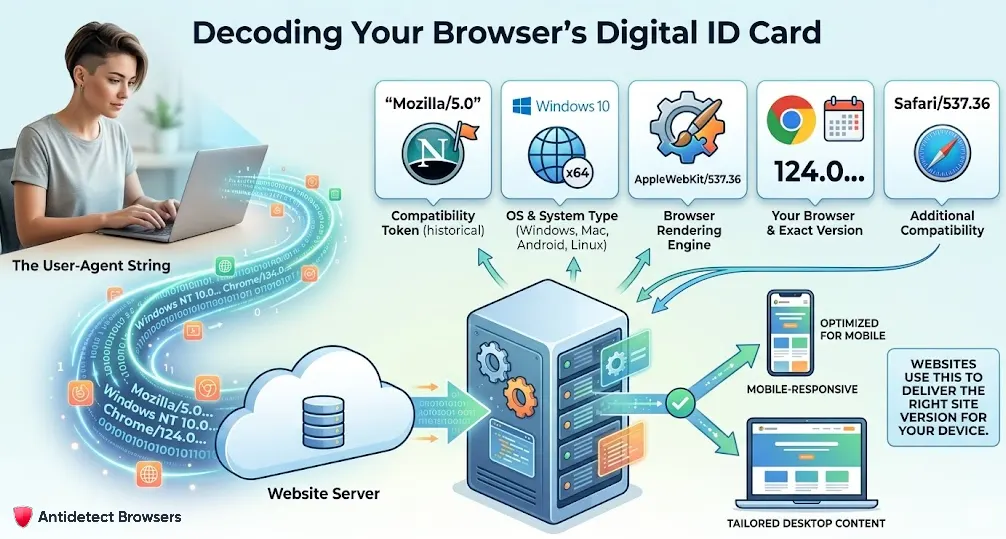
A typical user-agent string from Chrome on Windows looks like:
Mozilla/5.0 (Windows NT 10.0; Win64; x64) AppleWebKit/537.36 (KHTML, like Gecko) Chrome/124.0.0.0 Safari/537.36
Each section of that string carries specific information:
| Component | What It Reveals |
|---|---|
| Mozilla/5.0 | Compatibility token (historical, present in almost all browsers) |
| Windows NT 10.0; Win64; x64 | Operating system and architecture |
| AppleWebKit/537.36 | Browser rendering engine |
| KHTML, like Gecko | Engine compatibility flags |
| Chrome/124.0.0.0 | Browser name and exact version number |
| Safari/537.36 | Additional compatibility token |
Every browser has a slightly different format. Safari on macOS, Firefox on Linux, and Chrome on Android all produce distinct user-agent strings. Websites use these strings to deliver appropriate content and to identify your device type.
Why User-Agent Strings Matter for Anti-Detection
User-agent strings are one of the easiest fingerprint parameters for detection systems to verify. Unlike Canvas or WebGL data, user-agent analysis requires zero computational overhead. Servers check it on every single request.
Detection systems look for three main issues:
User-agent and fingerprint consistency is the foundation of a believable browser profile. Every other fingerprint parameter must align with what the user-agent string claims.
How Anti-Detect Browsers Handle User-Agent Spoofing
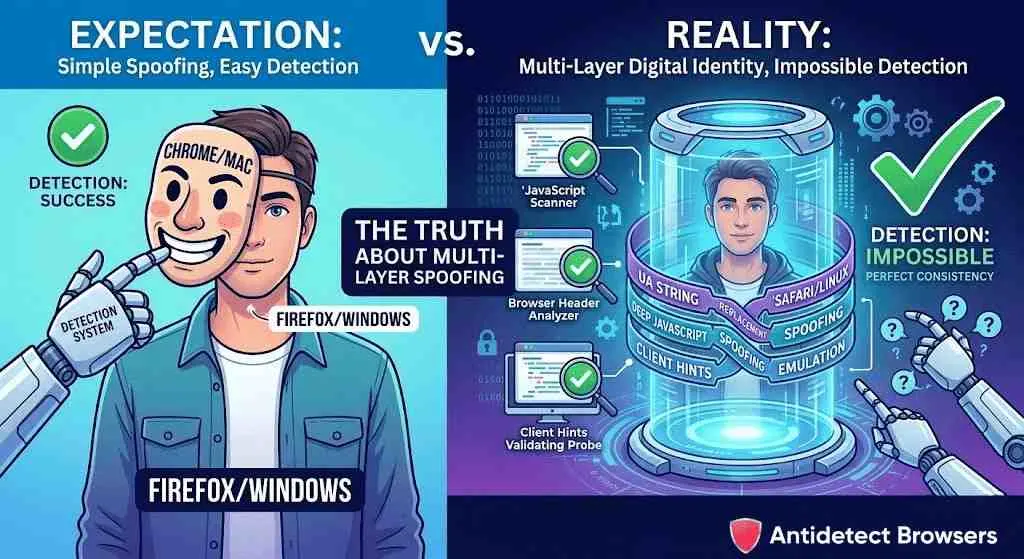
Anti-detect browsers replace your real user-agent string with a spoofed version that matches the profile's configured identity. When you create a profile set to Chrome on macOS, the browser sends a macOS Chrome user agent to every website.
But good anti-detect browsers go much further than simple string replacement. They also modify:
In 2026, Chrome and Chromium-based browsers heavily rely on User-Agent Client Hints instead of the traditional UA string. Detection systems now check both. Anti-detect browsers must spoof Client Hints data alongside the classic user-agent string for full coverage.
The Shift to User-Agent Client Hints in 2026
Google has been reducing information in the traditional user-agent string since 2022 through its User-Agent Reduction initiative. By 2026, Chrome sends a frozen, minimal UA string by default and delivers detailed data only through the Client Hints API.
Client Hints work differently from the old UA string. Instead of one long string, information is split across multiple HTTP headers:
Websites must actively request high-entropy Client Hints to receive detailed data. Anti-detect browsers in 2026 must handle both low-entropy (automatically sent) and high-entropy (requested) Client Hints correctly.
If your anti-detect browser spoofs the classic UA string but returns real Client Hints data, detection systems will catch the mismatch immediately. Always verify that your browser supports complete Client Hints spoofing alongside traditional user-agent modification.
Choosing the Right User-Agent for Your Profile
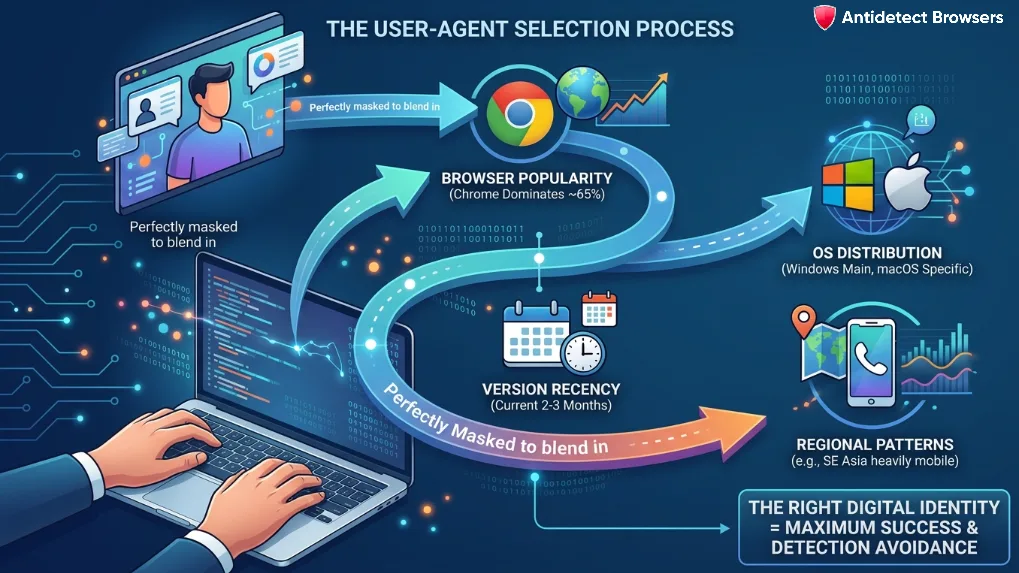
Selecting an appropriate user agent requires matching several factors:
Here is a quick reference for optimal user-agent selection based on common use cases:
| Use Case | Recommended OS | Recommended Browser | Notes |
|---|---|---|---|
| US/UK e-commerce | Windows 10/11 or macOS | Chrome 132+ | Desktop user agents dominate seller dashboards |
| Social media management | Android or iOS | Chrome Mobile or Safari | Mobile fingerprints reduce suspicion on social platforms |
| Web scraping | Windows 10 | Chrome 132+ | Most common combination avoids statistical outlier flags |
| Ad verification | Varies by target region | Chrome or Firefox | Match regional browser preferences |
How to Verify Your User-Agent Configuration
After setting up a profile, always check that your user-agent configuration passes detection. Use these tools:
Look specifically for these red flags during testing:
Keeping User Agents Updated
User agents have a short shelf life. Chrome releases major updates roughly every four weeks. A profile running Chrome 120 in 2026 is immediately suspicious because that version is over a year old.
Automatic user-agent rotation and updates are features offered by premium anti-detect browsers. They refresh user-agent strings and fingerprint libraries regularly to match current browser releases.
If your anti-detect browser does not update automatically, schedule monthly reviews of your profile configurations. Check the latest stable Chrome and Firefox versions and update your user agents accordingly.
Stale user agents are low-hanging fruit for detection systems. Keeping them current is one of the simplest yet most effective steps you can take to maintain profile credibility across all platforms in 2026 and beyond.