Affiliates who manage dozens of accounts know one truth: a single IP ban can wipe out weeks of work. Pairing Bright Data proxies with Multilogin solves that problem fast.
Bright Data offers over 150 million residential IPs across 195 countries, while Multilogin creates isolated anti-detect browser profiles that mimic real devices. Together, they form a powerful setup for running affiliate marketing campaigns at scale without detection.
In 2026, platforms like Facebook, Google, and Amazon have become far more aggressive with fingerprint tracking. A basic VPN no longer cuts it. You need a proper proxy and anti-detection browser combination to stay ahead. Here is exactly how to set it up, step by step.
Why Affiliate Marketers Need Bright Data and Multilogin Together
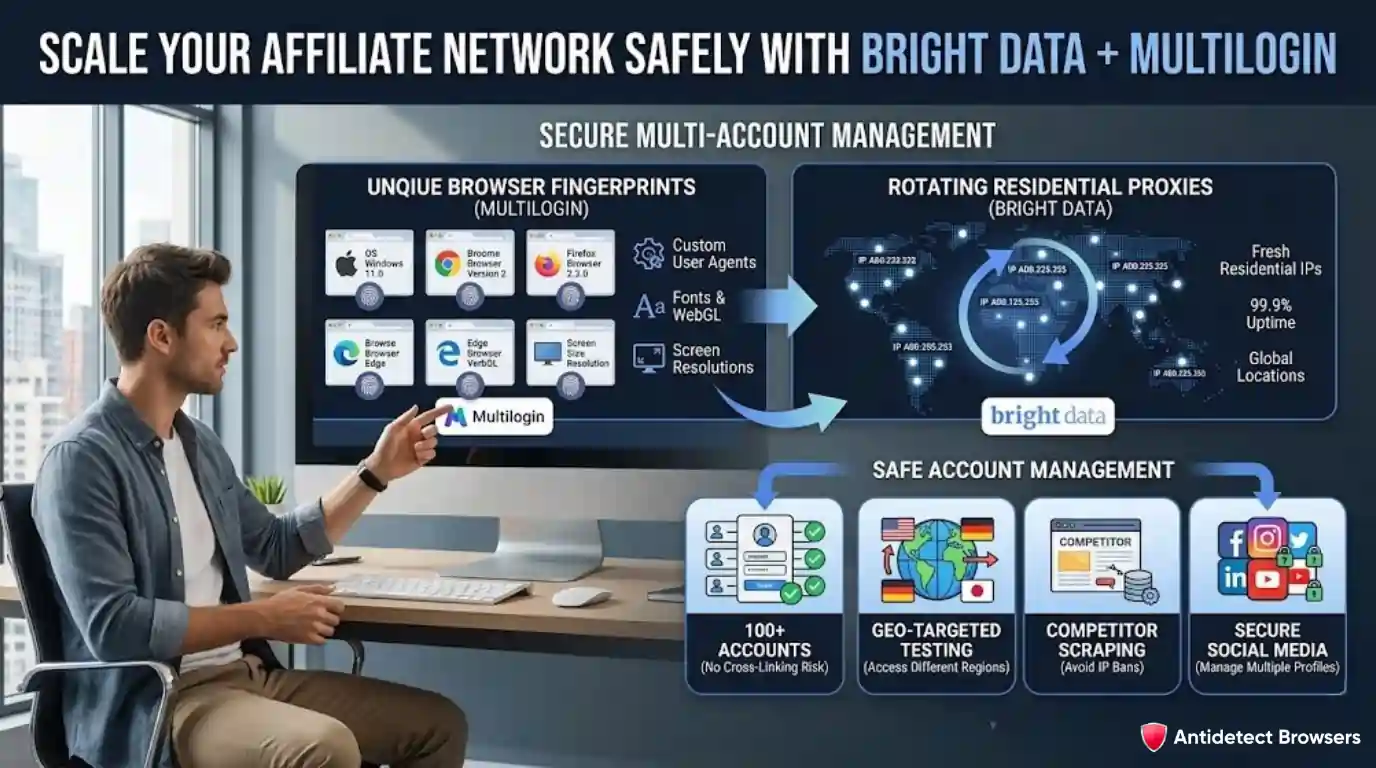
Running multiple accounts on a single IP address is a quick way to get flagged. Ad platforms and affiliate networks now use advanced tracking methods that go beyond IP detection. They analyse browser fingerprints, screen resolution, installed fonts, and even mouse movements.
Bright Data provides rotating residential proxies that assign a fresh IP to each session. Multilogin takes it further by creating unique browser fingerprint profiles for every account. Each profile looks like a completely separate device to any website.
For affiliate marketers, here is what that means in practice:
Without both tools working together, platforms can still connect your accounts through shared browser data, even if your IP changes.
What You Need Before Getting Started
Preparation saves time and avoids errors during setup. Gather everything listed below before you begin.
| Feature | Bright Data | Multilogin |
|---|---|---|
| Primary Function | Proxy network provider | Anti-detect browser software |
| IP Pool Size | 150M+ residential IPs | N/A |
| Proxy Types | Residential, datacenter, ISP, mobile, SOCKS5 | Built-in proxy integration |
| Starting Price | $8/GB (Pay As You Go) | ~$5/month (annual billing) |
| Free Trial | First deposit match up to $500 | 3-day trial for ~$2 |
| Best For | IP rotation and geo-targeting | Browser fingerprint protection |
Bright Data offers a Pay As You Go plan starting at $8/GB for residential proxies, with volume discounts dropping rates to $2.50/GB on enterprise tiers. Multilogin now offers a 3-day trial for about $2, which is enough to test a full integration before committing to a paid plan.
Step-by-Step Bright Data Proxy Zone Setup
Before configuring Multilogin, you must first create and configure a proxy zone inside Bright Data. A proxy zone holds all settings and credentials for a specific group of IPs. Getting your zone right from the start prevents connection issues later.
- Log in to your Bright Data control panel at brightdata.com
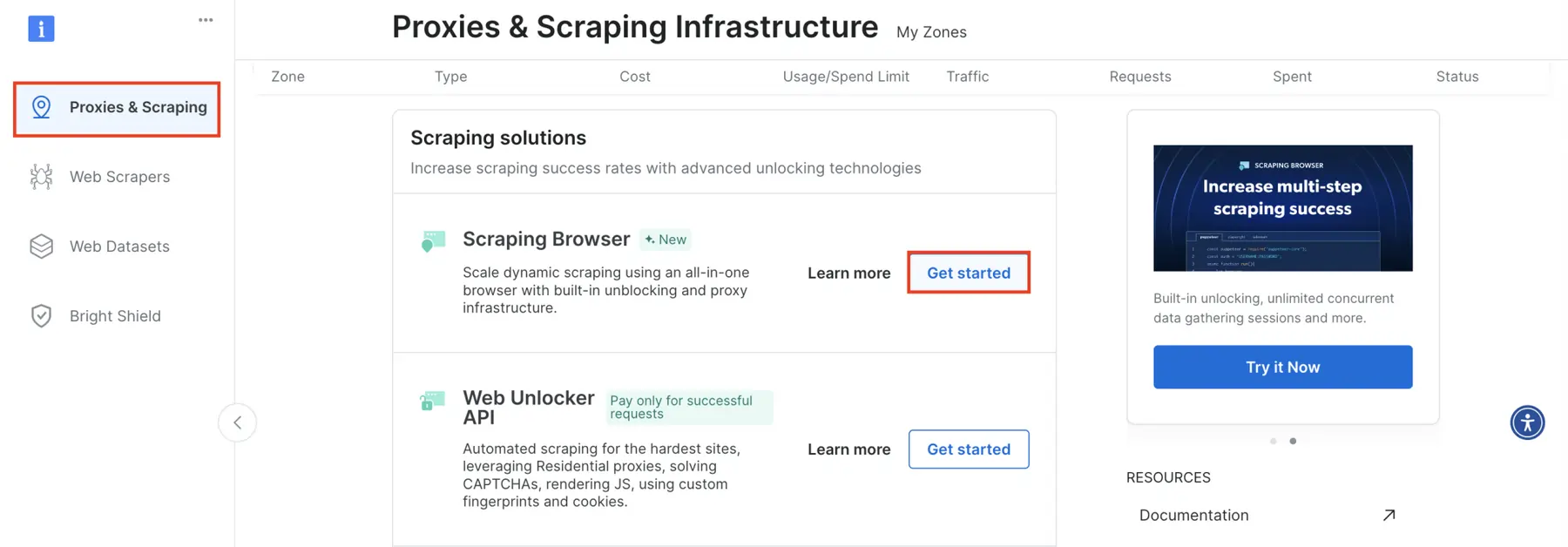
- Click on “Proxies & Scraping” and select “Create a Zone”
- Choose your network type: Residential, Datacenter, ISP, or Mobile
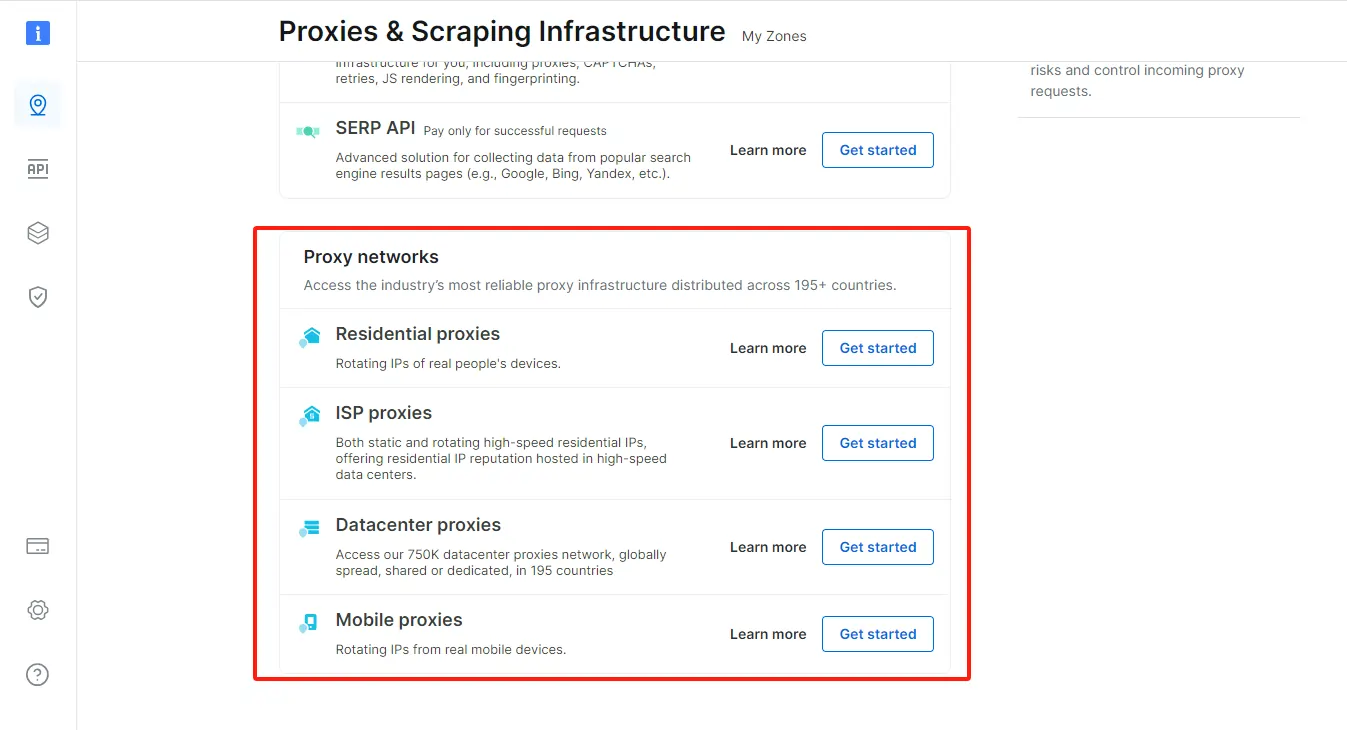
- Name your zone something clear, like “Affiliate-Residential-US”
- Click Save to activate your new zone
- Open your zone and navigate to Access Details under the Overview tab
- Copy your Proxy Host, Port, Username, and Password
Keep credentials somewhere secure. You will paste them directly into Multilogin during proxy configuration settings in the next step.
For country-specific proxy targeting, modify your username format. Adding -country-US at the end of your username forces all traffic through a US exit node. Bright Data supports city-level and ASN-level targeting as well, which is useful when running location-based affiliate offers.
Configuring Multilogin Browser Profiles with Bright Data Proxies
Now comes the main integration. Open Multilogin and follow each step carefully.
- Launch Multilogin and log in to your account
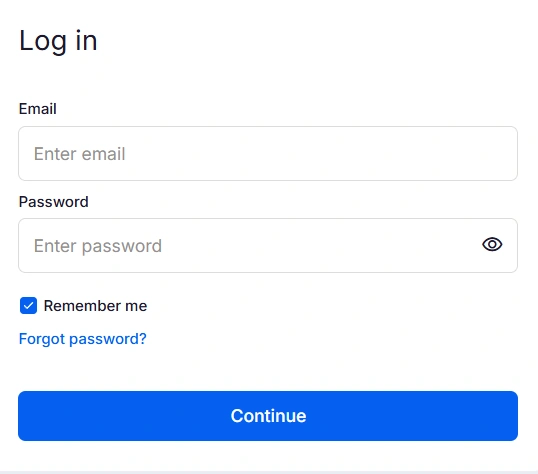
- Click “New Profile” to create a fresh browser profile
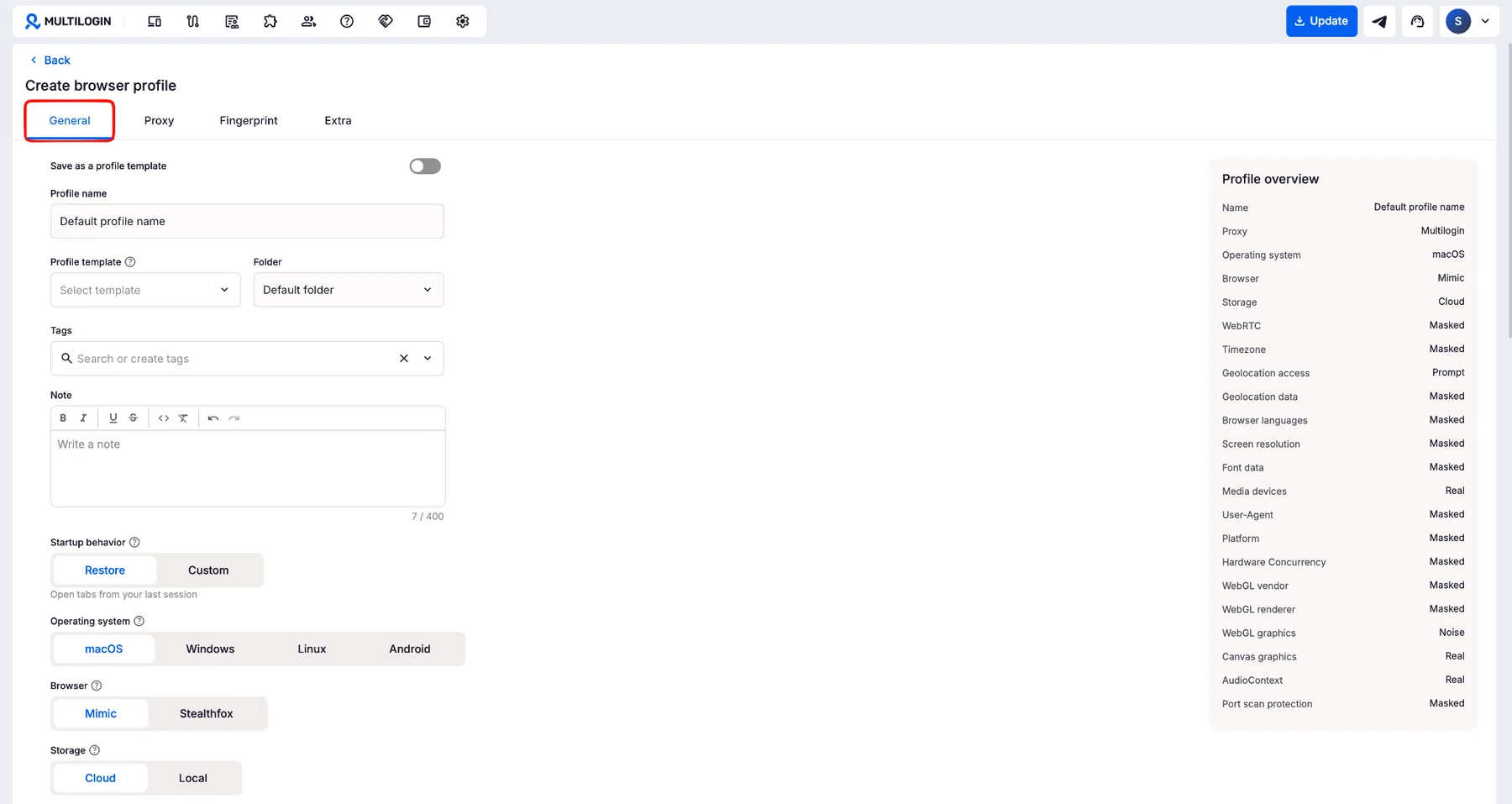
- Enter a clear profile name, such as “BD-Residential-US-01”
- Select your operating system (match it to your actual OS to avoid fingerprint mismatches)
- Choose a browser type: Mimic (Chrome-based) or Stealthfox (Firefox-based)
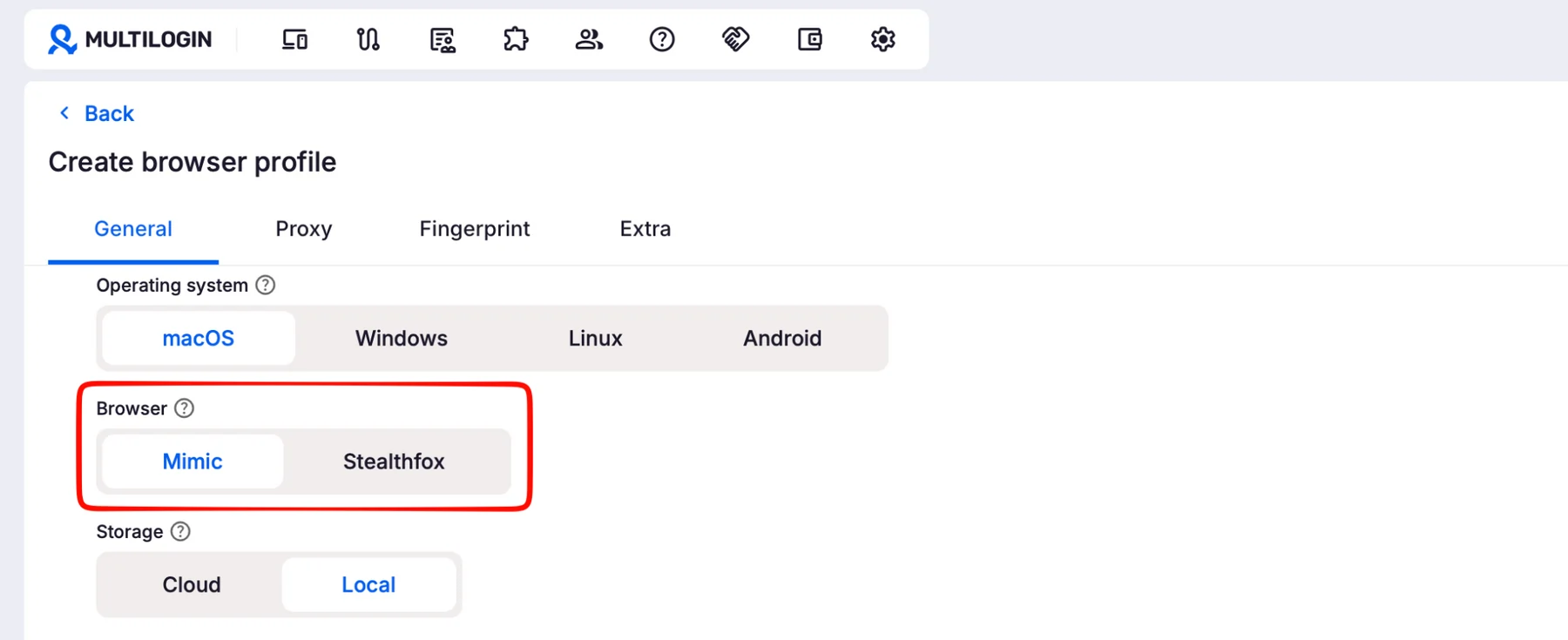
- Set Storage Type to Cloud if you work across multiple devices or with a team

Next, scroll down to proxy settings and enter your Bright Data credentials:
Click “Check Proxy” to verify everything works. If successful, hit Save. Your Multilogin browser profile with proxy is now ready to launch.
Both Mimic and Stealthfox browsers offer strong anti-detection fingerprint masking. Mimic is generally preferred for Google and Facebook campaigns. Stealthfox works well for platforms that favour Firefox-based sessions.
Fixing Proxy Test Errors D uring Connection Verification
A frustrating issue trips up many users during setup. When you click “Check Proxy” in Multilogin, some configurations default to testing against Google or Bing. Bright Data blocks proxy tests aimed at search engines, which triggers a false “Proxy Error” message even when everything is configured correctly.
Your proxy is likely working fine. To confirm, change your test URL to:
https://geo.brdtest.com/welcome.txtYou can also launch your profile and visit httpbin.org/ip manually. If you see an IP address different from your real one, your residential proxy connection is active and routing correctly. Always use a non-search-engine URL for proxy testing with Bright Data.
Assigning Unique Proxies to Each Affiliate Account
For serious multi-account management with proxies, each Multilogin profile should use a distinct IP. Bright Data supports sticky sessions, which means you can lock a specific IP to a profile for hours or even days.
To assign a specific IP, modify your username like so:
brd-customer-CUSTOMERID-zone-ZONENAME-ip-1.2.3.4Replace 1.2.3.4 with your assigned static IP. Sticky sessions prevent IP rotation mid-session, which keeps accounts looking consistent to platforms.
Here are a few best practices for affiliate account separation:
Choosing Between Bright Data Proxy Types for Affiliate Campaigns
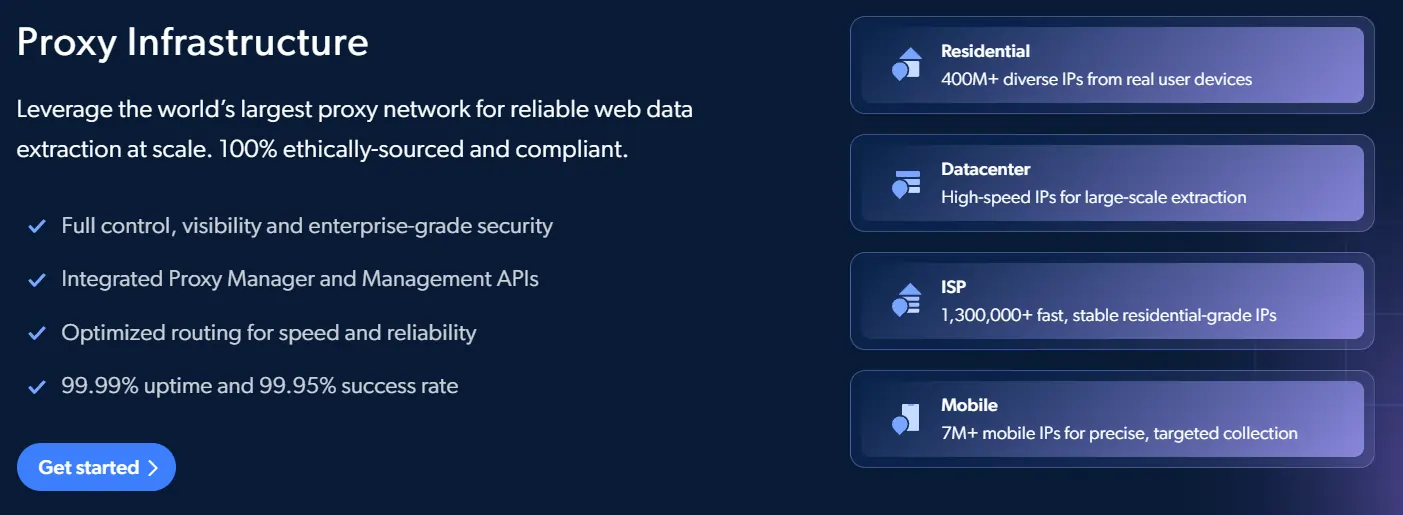
Not all proxy types serve every purpose equally. Here is a quick breakdown for affiliate marketers:
Picking your proxy type based on specific campaign needs keeps costs down and performance high.
Scaling Your Proxy Setup for Multiple Affiliate Campaigns
Once you have one profile running smoothly, scaling is straightforward. Multilogin allows hundreds of profiles under business plans, and Bright Data can supply thousands of unique IPs per zone.
Use naming conventions like “Campaign-Platform-Region-Number” to keep profiles organised and easy to manage.
Cloud storage in Multilogin lets team members access shared profiles from any device. Paired with Bright Data's API, you can automate proxy rotation and session management for large-scale operations.
Marketers running 50+ accounts often use Bright Data's Proxy Manager software alongside Multilogin for finer control over IP allocation, session duration, and bandwidth usage across campaigns.
Getting More Value From Your Proxy and Browser Stack
Combining Bright Data with Multilogin gives affiliate marketers a reliable and scalable way to manage accounts without risking bans or detection.
With 150 million residential IPs and fully isolated browser profiles, every session stays unique. As tracking systems grow smarter in 2026, a proper anti-detection proxy setup is no longer optional for serious marketers.
Start with a single profile, verify your connection using a test URL, and scale confidently once your workflow is dialled in. A small investment in setup now saves hours of recovery later.